AI image and video models
All the models
in one place
Create with frontier image and video models from OpenAI, Google, ByteDance and more. Keep your characters, references and versions in one studio.
Image and video models in Fringe
From character references to finished clips, work with frontier models in one studio. Choose your favorites or let Fringe help with the choice.
 SeedanceByteDance
- 2.5 Reference2.02.0 Fast2.0 Reference2.0 Mini
- Make clips, with options for image, video and audio references.
 MiniMaxMiniMax
- H3H3 ReferenceH3 MaxH3 Max Reference
- Generate clips, including reference-based versions for your cast and performance.
 KlingKuaishou
- 2.5 TurboV3V3 Motion Control
- Generate video or guide a character’s movement with a reference video.
 VeoGoogle
- 3.1 Lite
- Create video with generated audio.
- WanAlibaba
- 2.2 Turbo2.62.73.03.0 Prime
- Explore video generation from text, images and references.
- ViduShengShu
- Q2Q3
- Turn reference images into video.
- LTXLightricks
- 2.3 Fast
- Generate video with native audio.
 GrokxAI
- Imagine VideoImagine Edit Video
- Make a new clip or transform an existing take.
 GPT ImageOpenAI
- 2.5 Sunburst2.5 Flare21.5
- Create and edit character references, starting frames and artwork.
- Nano BananaGoogle
- Pro2
- Generate images and edit with image references.
- SeedreamByteDance
- 5 Lite
- Explore character art, scene concepts and reference images.
- RecraftRecraft
- V4
- Create reference artwork and explore a visual style.
- WanAlibaba
- 2.6 Image2.7 Image
- Make images for characters, settings and starting frames.
- GrokxAI
- Imagine Image
- Generate images for your next scene.
Available versions, supported references and prices in pixels are shown in the studio before you generate.
Keep the whole process in one project
- 1
Build the image
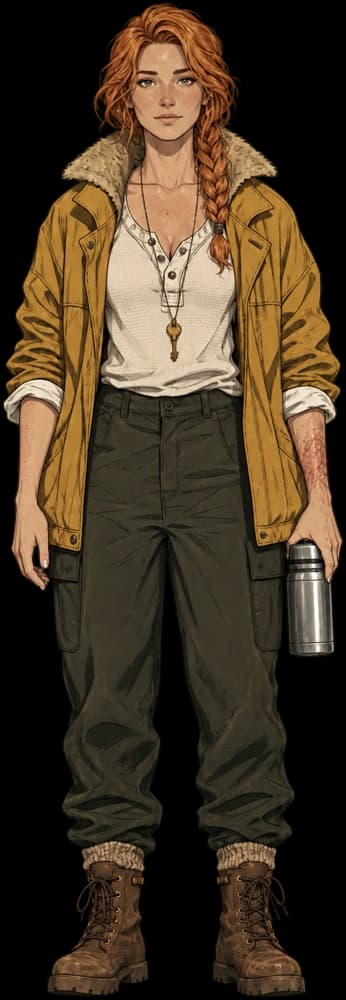
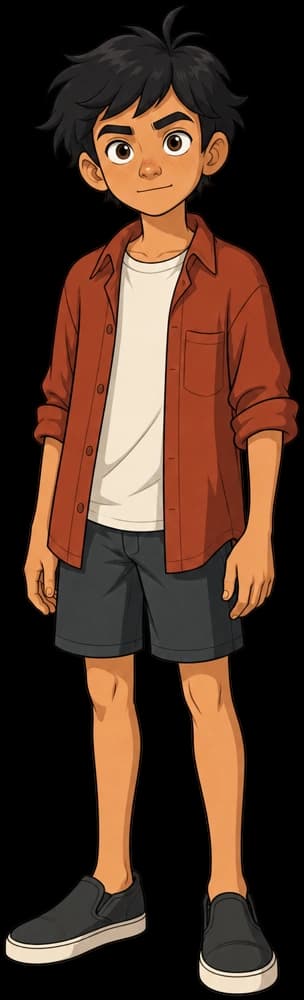
Create character references or a starting frame with an image model. Save the version you want to use.
- 2
Make the clip
Use your images and direction to prepare a video. Review the model and price in pixels before you generate.
- 3
Try another take
Try another model on the same clip. Compare v1 and v2, then keep your preferred version.
Same project, different possibilities
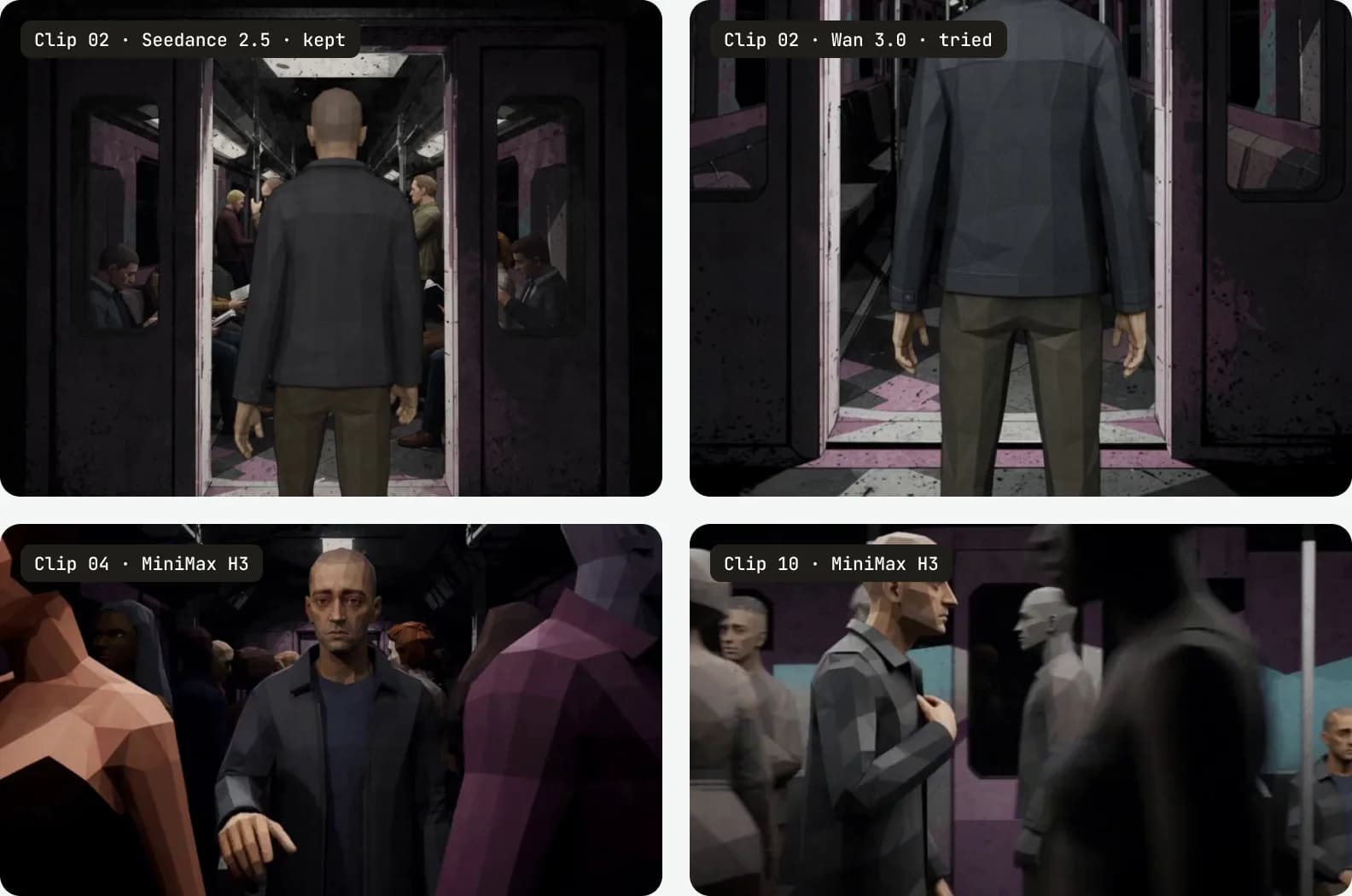
Compare the take, keep the context
Try different models on the same clip, review the versions together and keep the take you prefer. The alternatives stay in the project, ready to revisit.
Keep your character references and saved direction close as you explore different models.
Questions
Which AI image and video models can I use in Fringe?
Fringe includes video models from Seedance, MiniMax, Kling, Veo, Wan, Vidu, LTX and Grok, plus image models including GPT Image, Nano Banana, Seedream, Recraft, Wan and Grok. The catalog on this page lists available versions.
Do I need a separate subscription for each model?
No. You access the models through your Fringe account and use pixels for generation. You do not need separate accounts with each model provider. See Fringe’s pricing page for plans and pixel top-ups.
Can I choose a model and check its cost before generating?
Yes. Choose a model in the studio, save your favorites and review the price in pixels before you generate. Reference support and available settings depend on the selected model.
Can I use different models in the same project?
Yes. You can create references with an image model and generate clips with different video models in the same project. Compare clip versions and keep your preferred take. Shared references help you direct consistency; review each result before using it.
Advanced tools, made accessible
- Characters
Consistent characters
Same face, outfit and voice in every video.
Create - Storyboards
Script to storyboard
Paste a scene. Get panels and timing for each video.
Plan - Directing
Directing a video
Starting frames, blocking and notes shape each video.
Direct - Your show
Creation that compounds
Reuse your assets across multiple shorts.
Reuse
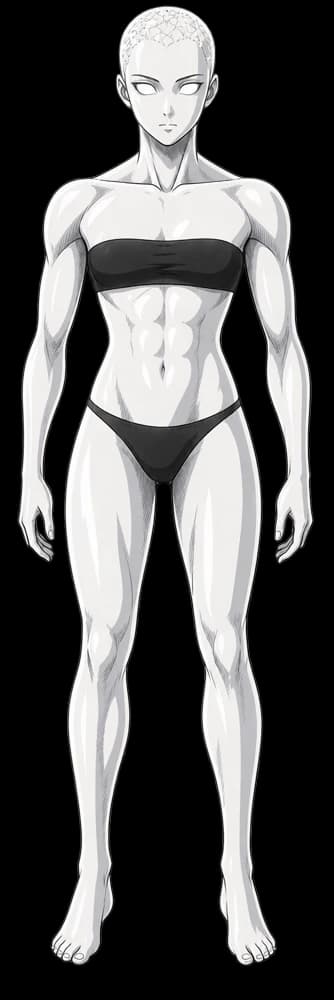


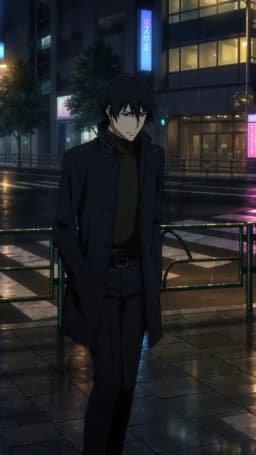
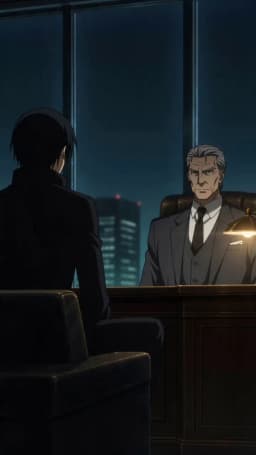

Now casting your next story
Start your first project for free, no card required.