AI video direction
Directing a video
starts with you
Set the frame, shape the action and give notes in your own words. Fringe handles the prompting.
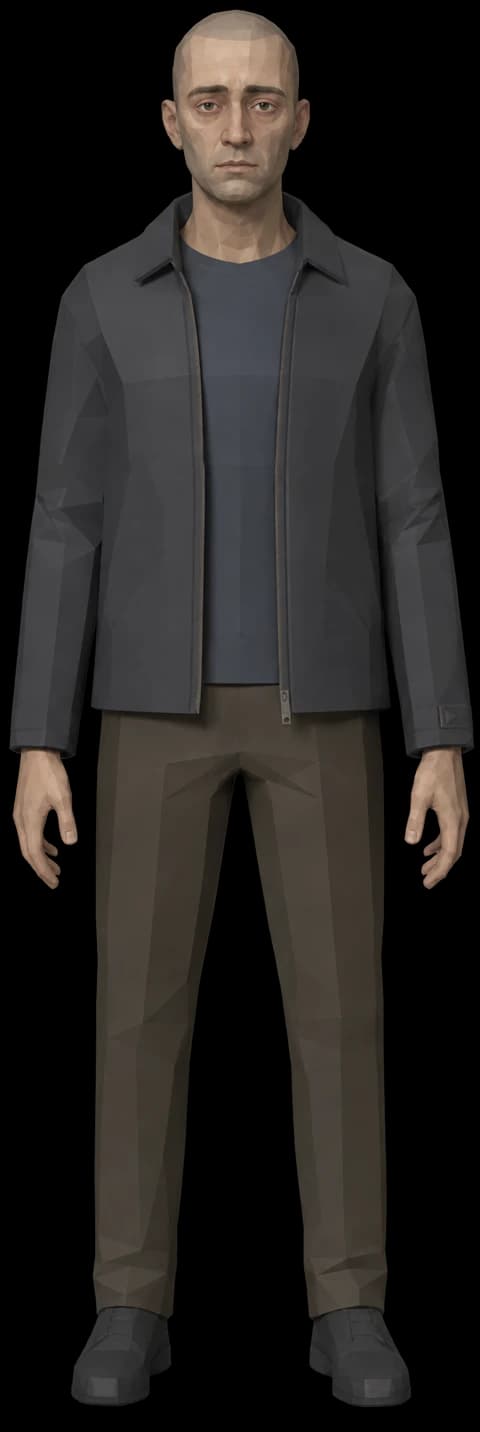
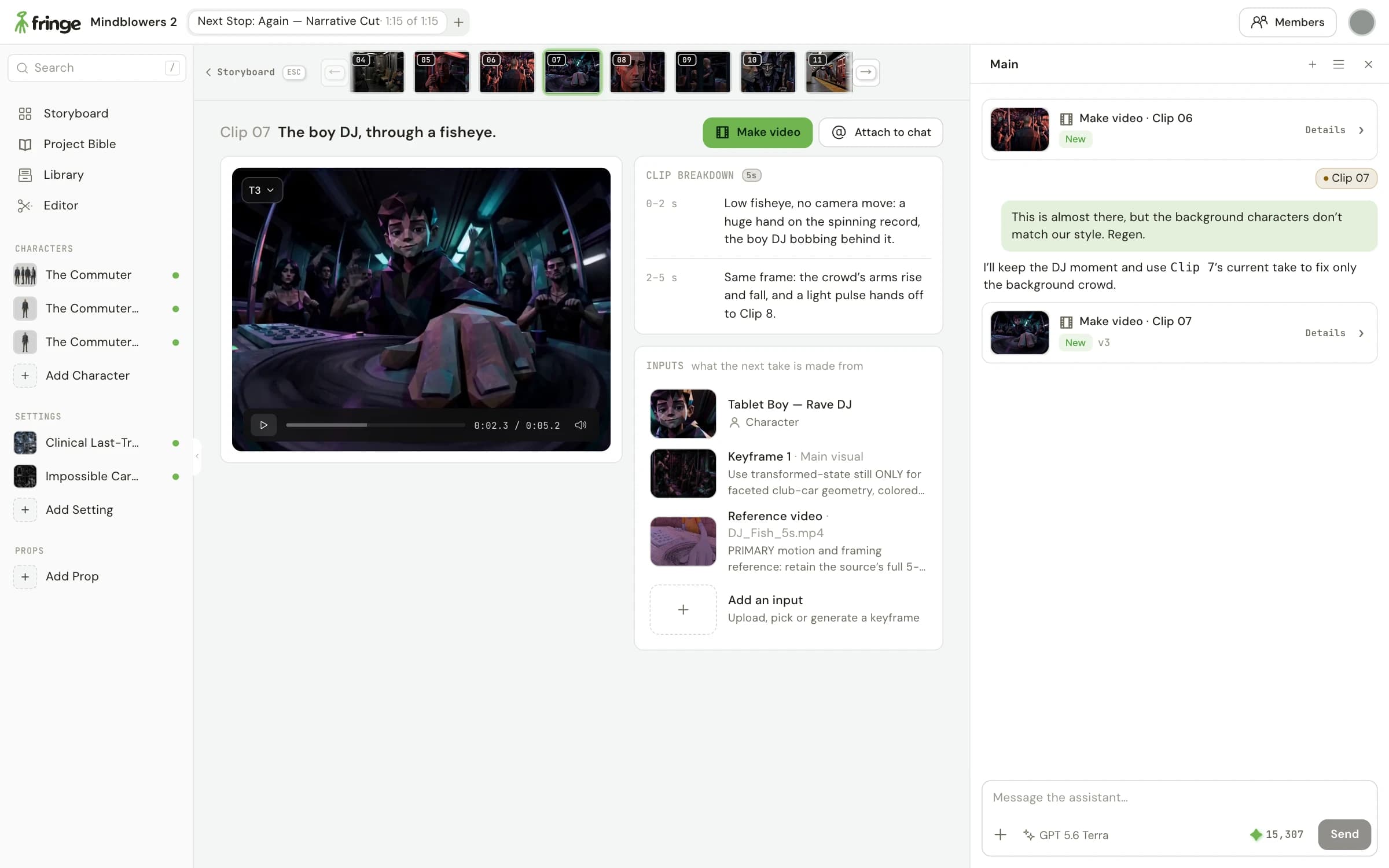
Get specific about the shot
- Set up the frame
- Choose who is in the shot and where the action happens. Bring a keyframe, a sketch or a frame from your last clip to set the composition.
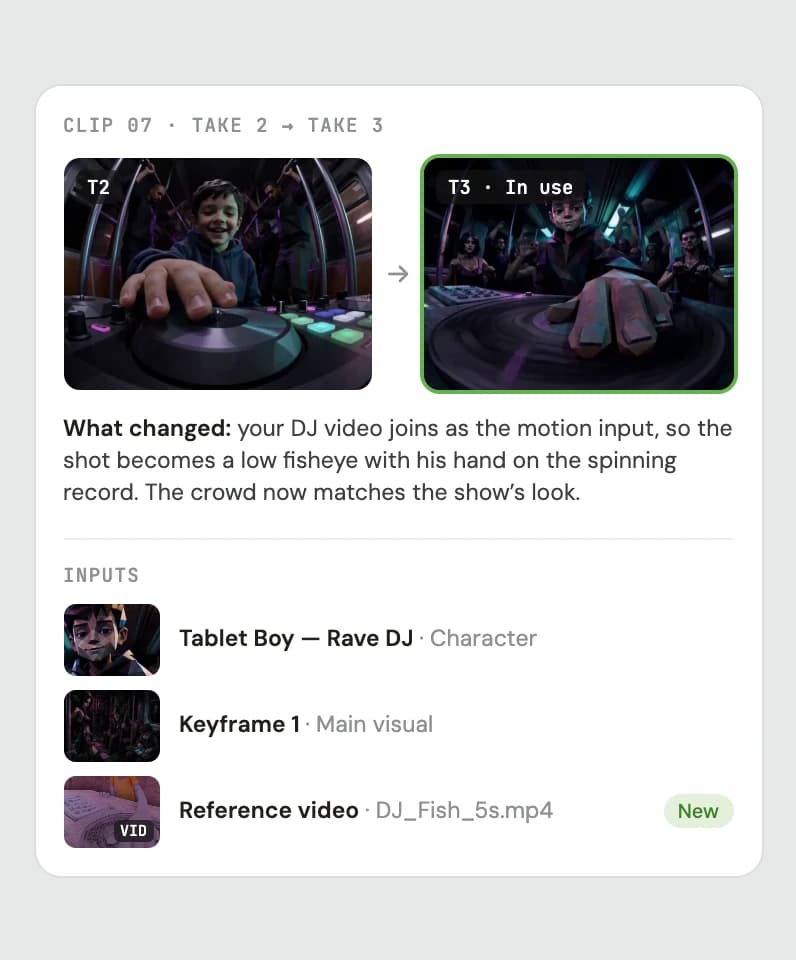
- Show the movement
- Add a video as a motion reference, like a clip you filmed or found. Fringe takes the movement and keeps your show’s look.
- Give a clear note
- Say exactly what should change, like the camera, the timing or one character’s look. Fringe keeps what works and makes the next take.
From your direction to the next take
- 1
Set the frame
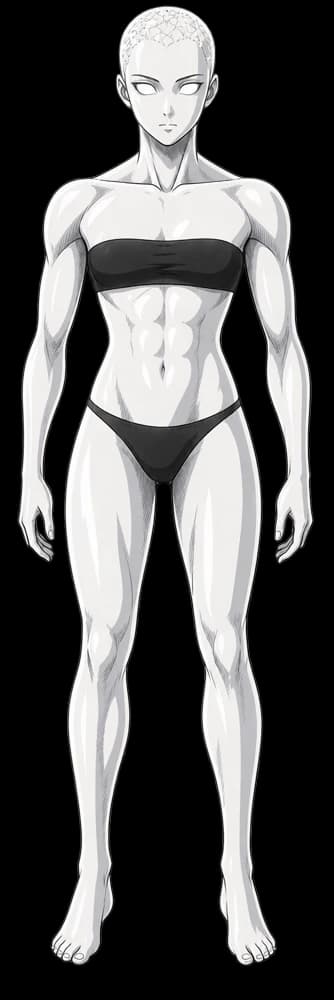
Ask for keyframes first, or bring your own. Approve the look before any video is made.
- 2
Show the movement
Attach a video and say what to take from it, like the motion only.
- 3
Give a note
Say what should change. Fringe keeps what works and makes the next take.
Find the performance in the versions
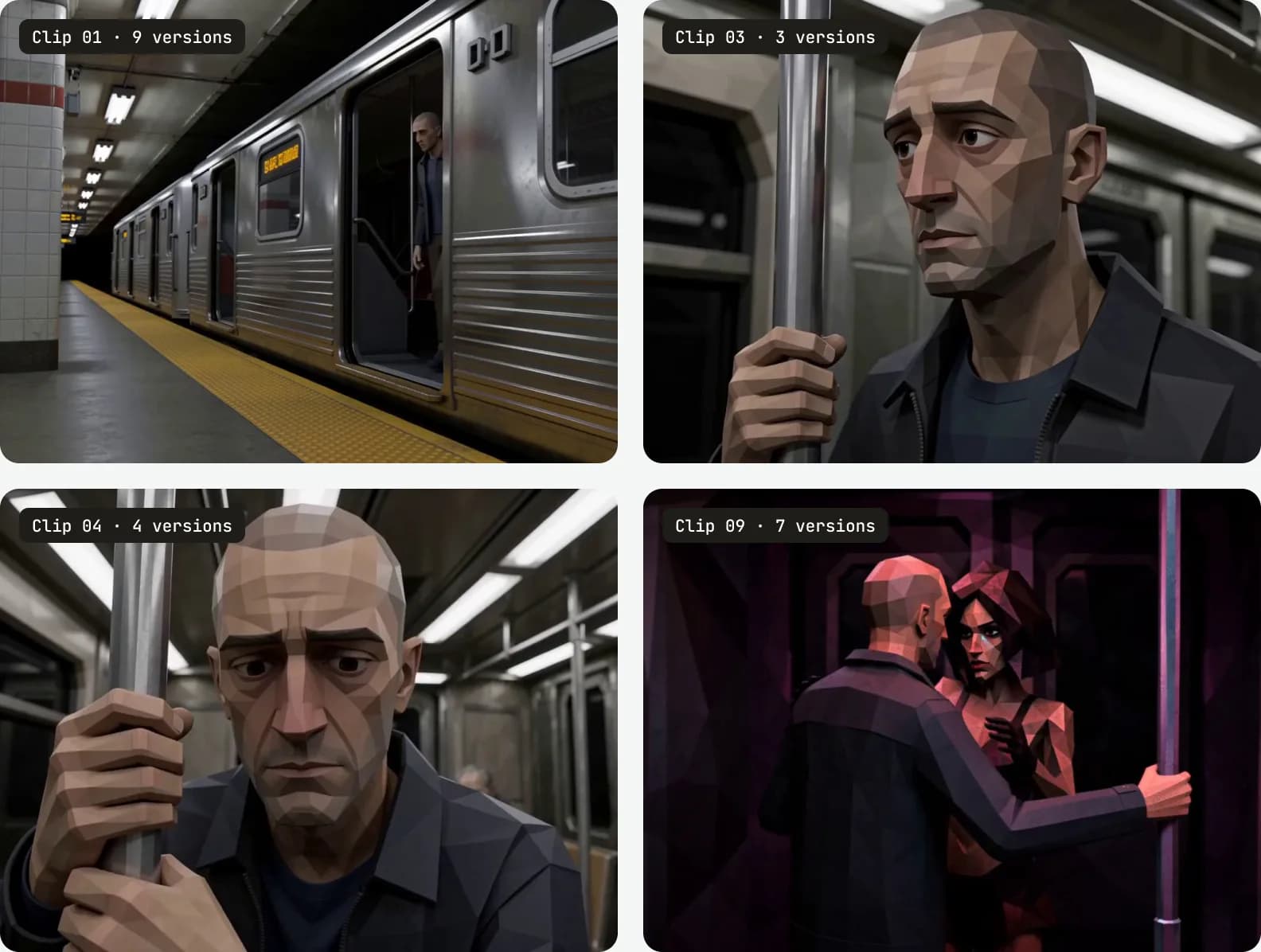
The same scene, a different take
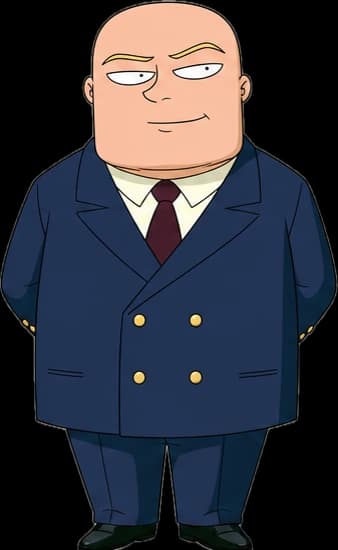
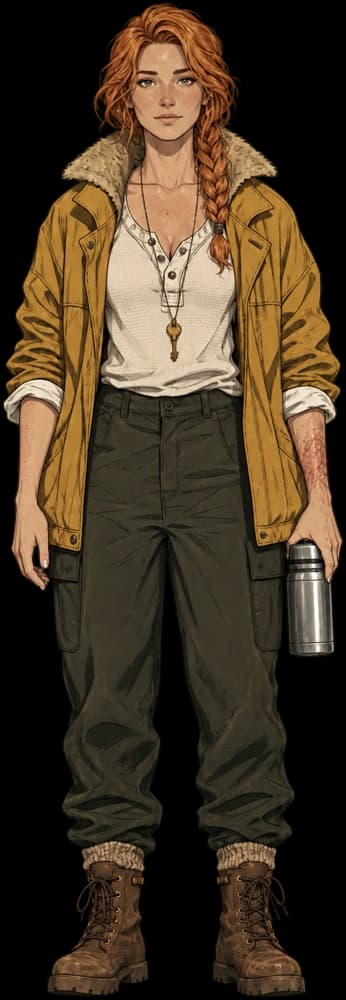
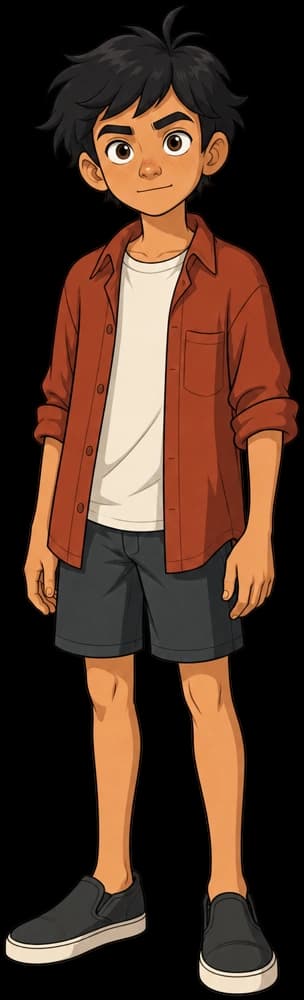
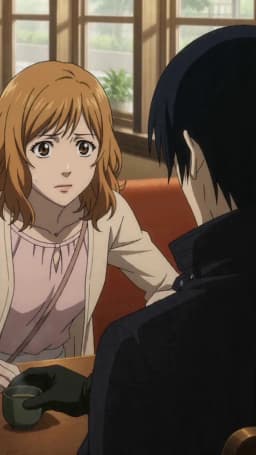
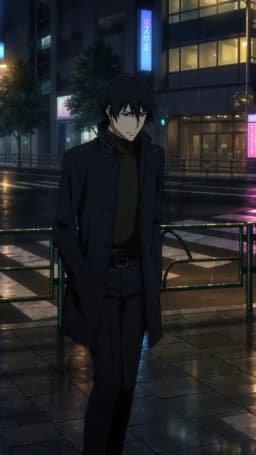
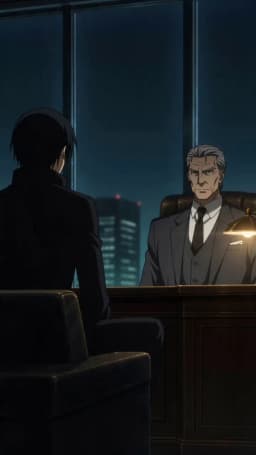
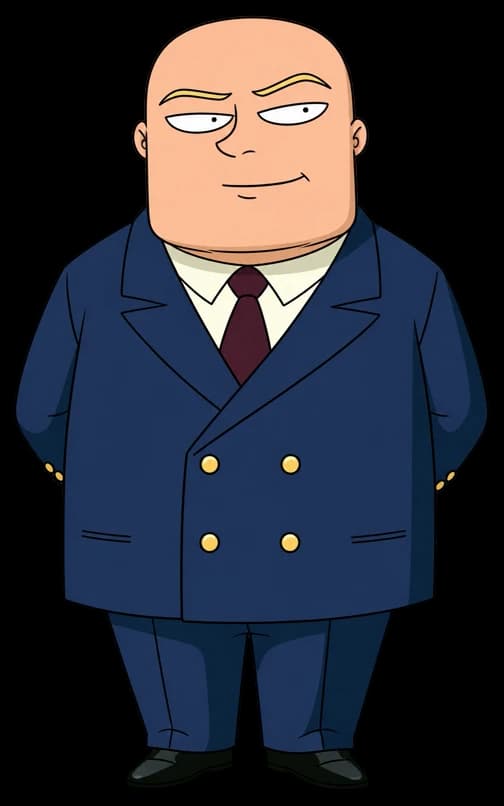
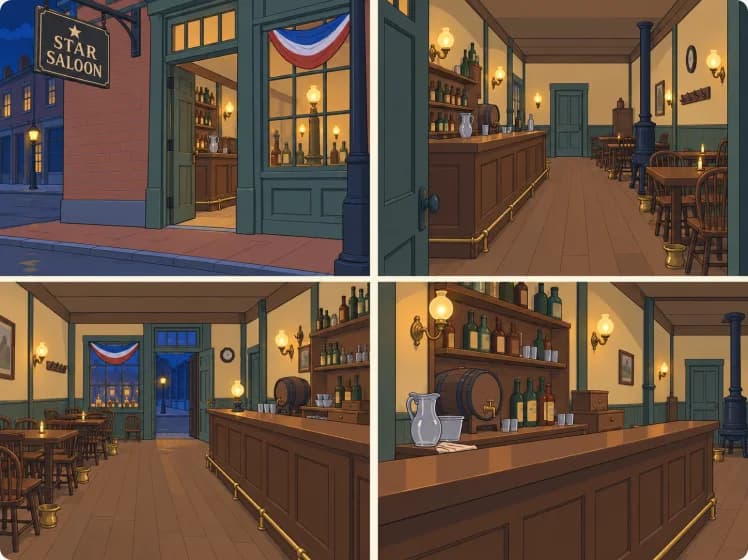
In the Next Stop: Again project, the Commuter’s subway journey takes shape across multiple versions. The character and setting references stay close as the direction changes.
A new take gives you another option to judge. Compare the result with your intent and keep the version that serves the scene.
Questions
How do I direct an AI video in Fringe?
Choose your character, action and Setting, then add references and frame blocking for the shot. Fringe prepares the generation. Review the result, give a note in your own words and compare the next version.
Do I need to write a video prompt?
No. Describe the shot and the changes you want. Fringe handles the prompting. You can choose a video model yourself or let Fringe help with the choice.
What happens when I ask for a revision?
Fringe prepares a change from your note. Review the proposed generation and its price in pixels before making the next version, then compare the takes in your project.
Can I keep an earlier version of a clip?
Yes. Your versions stay with the clip so you can compare them and use the take you prefer. A new generation can change details, so review the full result before keeping it.
Advanced tools, made accessible
- Characters
Consistent characters
Same face, outfit and voice in every video.
Create - Storyboards
Script to storyboard
Paste a scene. Get panels and timing for each video.
Plan - Your show
Creation that compounds
Reuse your assets across multiple shorts.
Reuse - Models
All the models in one place
Select your favorites or let Fringe intelligently handle it for you.
Compare

 Seedance
 Veo
 Kling
 MiniMax
 GPT Image
 Grok
Now casting your next story
Start your first project for free, no card required.